1. Introduction
In one-way synchronizations (Autodesk ➝ External Source or External Source ➝ Autodesk), CDEAdminTools only tracks changes in the configured direction.
If a user manually deletes a synchronized folder on the non-observed side, the synchronization engine is not notified of the deletion.
This can generate errors when:
Autodesk updates a file inside that folder, or
New subfolders or documents are added on the source side
Since the destination folder no longer exists, the engine cannot write the changes, and CDEAdminTools displays an error.
To make solving this situation easy, we have added a powerful new feature:
➡️ Folder Regeneration
This tool allows administrators to automatically rebuild missing folders — and their entire hierarchy — ensuring synchronization can resume without manual work.
2. What the Folder Regeneration Feature Does
When you trigger Folder Regeneration, CDEAdminTools:
Recreates the deleted folder on the destination side
Restores the link between the Autodesk folder and the regenerated folder
Scans the entire Autodesk folder structure
Rebuilds all subfolders and documents on the destination
Removes all existing synchronization errors related to that broken folder
Automatically regenerates any missing parent folders
If one or several parent folders were also deleted, CDEAdminTools will recreate them as well
This ensures the entire folder hierarchy is rebuilt correctly
It makes the feature extremely powerful in real-world scenarios where multiple levels were removed by mistake
Thanks to this behavior, the regeneration process can fully restore the entire folder path, not just a single folder.
3. When You Should Use This Feature
Use Folder Regeneration when:
Your synchronization is one-directional, not in mirror mode
A user accidentally deleted a synchronized folder in the destination system
You see missing-folder errors in the Errors panel
The engine cannot synchronize updates because the destination folder structure no longer exists
This feature does not recreate deleted content within Autodesk — it restores the structure on the external system only.
4. How to Use the Folder Regeneration Tool
You will later insert your screenshots in the designated steps.
Step 1 — Open the Project Where the Error Occurred
Navigate to the Sync Project that contains the synchronization errors.
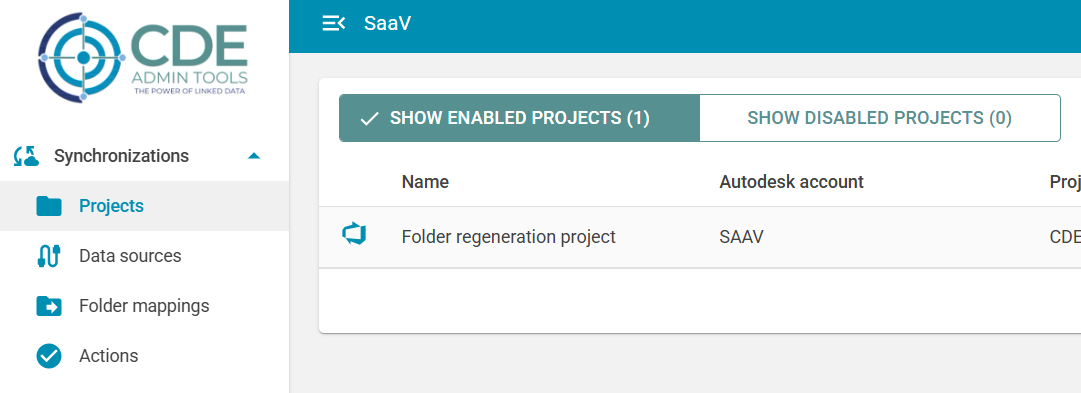
Step 2 — Open the Folder Explorer
Click the folder icon or “View Synchronized Folders” to display the synchronization folder tree.

Step 3 — Locate the Folder with Errors
Find the folder where the missing-folder error was detected.
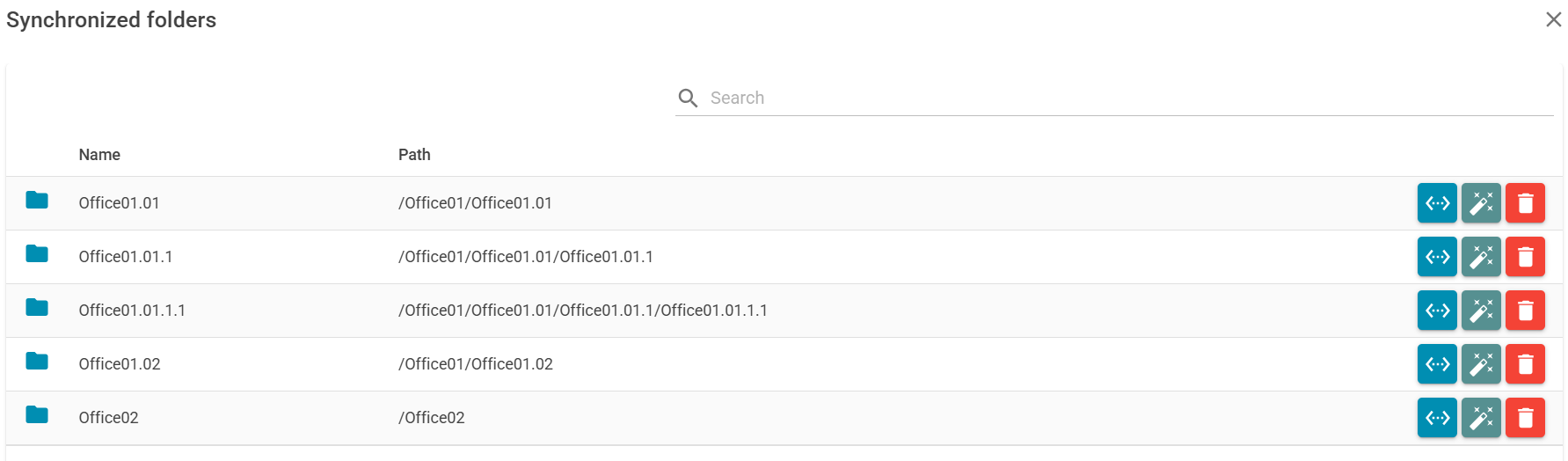
Step 4 — Validate the Issue
Click Check Sync Folder to confirm that the connection between Autodesk and the external folder is broken.
This ensures that the folder genuinely needs to be regenerated.

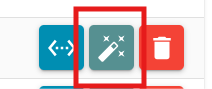
Step 5 — Start the Regeneration Assistant
Click the Regenerate Folder button.
CDEAdminTools will then:
Recreate the missing folder
Rebuild all missing parent folders (if any were deleted)
Restore the mapping between Autodesk and the external system
Regenerate all subfolders and files
Clear all related errors
5. What to Expect During the Process
The time required depends on:
How many files and subfolders must be recreated
How deep the folder hierarchy is
The size of the documents being restored
During regeneration:
You may leave the Folder List screen
Errors related to the folder will progressively disappear
You can monitor activity in Real-Time
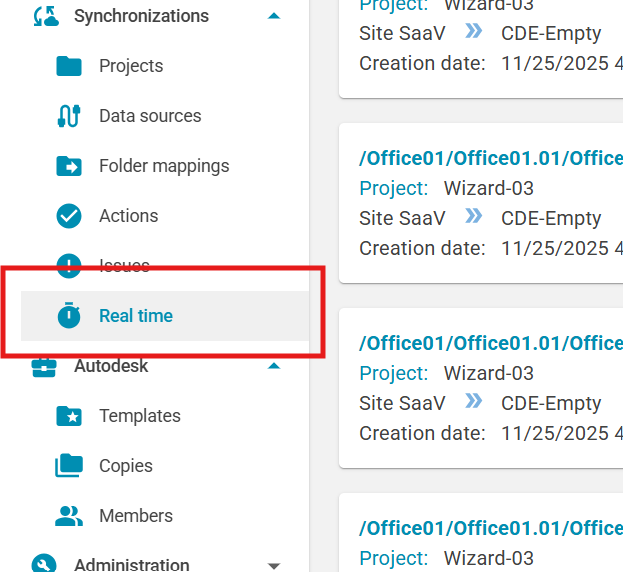
Once complete, the folder and all necessary parent folders will be fully restored, and synchronization will resume normally.
6. Summary
Folder Regeneration is a powerful tool that allows administrators to automatically repair missing folders during one-way synchronizations.
It not only restores the target folder but also regenerates any missing parent folders, recreating the entire required path.
This makes it invaluable for BIM Managers and project teams to quickly recover from accidental deletions on systems like:
SharePoint
OneDrive
Google Drive
SFTP
Any other external data source used in CDEAdminTools
With just a few clicks, the system can fully recover a broken folder hierarchy and remove all associated synchronization errors.
Was this article helpful?
That’s Great!
Thank you for your feedback
Sorry! We couldn't be helpful
Thank you for your feedback
Feedback sent
We appreciate your effort and will try to fix the article